


Super HomeScreen
4.0342.00 Reviews
App Specs
- Version
- 3.2.7
- Updated On
- License
- Free
- Downloads
- 1,000,000+
- Developer
- lighten apps
- Categories
- Personalization
- Platform
- Android
Screenshots
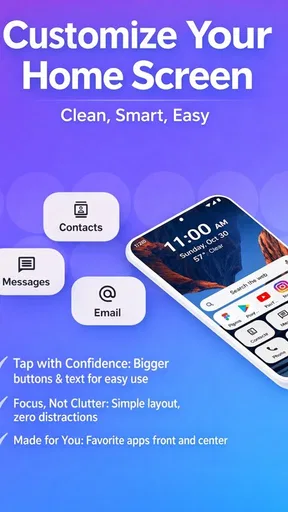
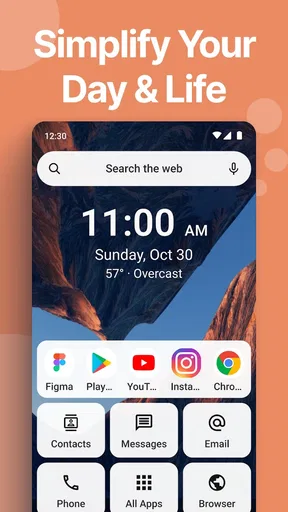
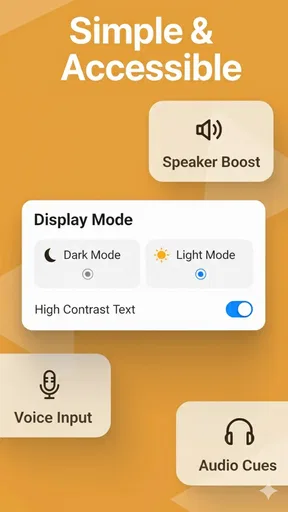
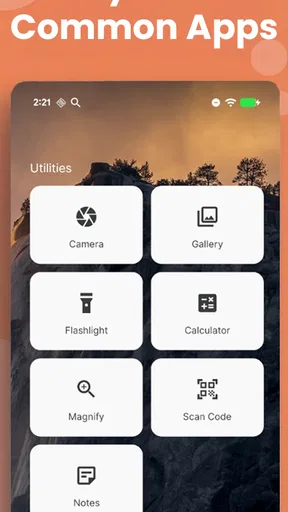
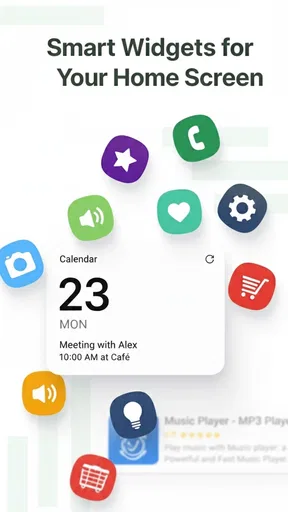
 Analysis by AppCompare
Super HomeScreen is the kind of personalization app I would judge less by flashy decoration and more by how quickly it helps me reach the things I use every day. Created by lighten apps, it takes the place of a conventional phone home screen and focuses on putting useful information and shortcuts within easy reach. That sounds simple, but a launcher affects almost every interaction with a phone, so small choices in layout, loading, and recovery matter a lot.
After spending time with it, my impression is that this is aimed at people who want a cleaner starting point rather than a heavily themed Android experience. It is free, rated for Everyone, and supports devices running Android 8.0 or later. The current version is 3.1.2, while the app itself was released on August 28, 2025. Those details make it accessible to a broad range of Android users, including people who are not using a brand-new phone.
The most interesting part of using a launcher like this is not the first glance. It is what happens when I am in a hurry, when the phone has a weak connection, when information needs to refresh, or when I need to return to a familiar app without thinking. That is where Super HomeScreen either earns its place or becomes another layer to work around.
How Super HomeScreen fits into everyday phone use
I find it helpful to judge Super HomeScreen by the small chain of actions that starts when I unlock my phone, not just by how its first screen looks. In this section, I’m focusing on how a focused layout can guide that chain and where it asks me to make choices. The next part follows a familiar routine from the first glance to the app I actually need.
A practical starting point instead of a decorative theme
I see this app as a utility-first launcher. The store summary describes it as an efficient home screen focused on speed and information, and that focus comes through in the way I think about its role: it should reduce the number of steps between unlocking the phone and doing something useful. It is not necessarily the right choice for someone who wants elaborate visual customization, animated effects, or a home screen built mainly around personal style.
The advantage of this approach is consistency. A traditional home screen can become crowded with icons, folders, widgets, and several pages that I rarely visit. A more focused layout encourages me to decide which apps and information deserve immediate attention. That is especially helpful when I use the phone for a few repeated tasks, such as checking messages, opening a calendar, starting navigation, or looking at the next item on a to-do list.
There is also a mental benefit to reducing visual noise. When the first screen is not competing for attention, I am less likely to open an app simply because its icon is visible. This is a subtle strength rather than a dramatic feature, but it is one of the reasons a focused launcher can feel faster even when the underlying phone has not changed.
Worth Reading Before You Choose

EA SPORTS FC Mobile 26 Is a Bigger Football Game, but It Takes Time

Flipboard Shows What News Apps Must Do Beyond the Feed

Switching to Android Auto Means Rethinking Your Driving Routine

Google Calendar Makes a Crowded Week Easier to Manage

Ludo King Makes the Most of the Minutes Between Plans

Baby Panda World Brings Quick Play to Modern Phones, but Its Game Library Feels Busy
Where connectivity becomes part of the experience
A home screen can look local and immediate while still depending on connected services for some of the information it presents. That distinction matters here. App shortcuts and the basic act of launching installed apps are one kind of interaction; refreshed information, account-backed content, or anything that needs an online source is another. I would not treat every item shown by a launcher as equally dependable when the connection is poor.
On a strong connection, a launcher that brings information forward can save me from opening several separate apps just to check what is happening. The benefit is greatest when I am at home or on reliable Wi-Fi and want a quick overview. I can glance at the screen, decide what needs attention, and move on without turning the phone into a chain of app launches.
The trade-off appears when I am moving between networks. Switching from Wi-Fi to mobile data, entering a building with weak reception, or using a congested public connection can make connected information slower to appear. In those moments, the home screen should still be useful as a launch point, but I would avoid assuming that every piece of information is current until it has had time to refresh.
The key practical lesson is to separate immediate shortcuts from information that needs a connection. If I know which parts of the screen are dependable without waiting and which parts may update later, the app feels much more predictable.
A realistic morning routine
Imagine a weekday morning when I unlock the phone while leaving home. I want to check the next appointment, open a messaging app, and start directions. With a conventional setup, I might swipe through pages, search for an icon, or open a widget and then move elsewhere. A focused home screen can make that sequence feel more direct because the first view is organized around the actions I actually repeat.
The network changes the order slightly. If I am still connected to home Wi-Fi, information that needs refreshing may appear promptly. If I have already stepped outside and the phone is changing to mobile data, I would first use the visible shortcut I trust, then allow time for connected content to catch up. That small adjustment prevents me from repeatedly tapping the same area and wondering whether the app has failed.
This is where the app’s speed-oriented idea makes sense to me. Speed is not only about opening an app instantly. It is also about reducing hesitation: knowing where to look, avoiding unnecessary screens, and understanding whether a delay comes from the launcher or from the service it is trying to display.
Using it while travelling or commuting
Mobile contexts reveal strengths and weaknesses that are easy to miss at home. On a train, in a parking area, or while walking between buildings, the phone may move through several levels of reception. A launcher remains valuable in those situations because I still need access to installed apps, but the information layer may behave less consistently than it does on a stable network.
My advice is to prepare the home screen around actions rather than assumptions about live data. Put the apps you need for travel, communication, and navigation where they are easy to reach, but do not make a time-sensitive decision solely because a connected item has not refreshed yet. If something looks stale, opening the relevant app directly is a better check than repeatedly returning to the home screen.
This also makes the launcher suitable for people who use their phone in short bursts. Someone checking a message between stops or opening a note while carrying groceries benefits from a clear starting point. Someone who expects a home screen to function as a complete live dashboard in every reception condition may find the experience less satisfying.
What happens when information does not load smoothly
Every connected interface needs a sensible recovery habit. With Super HomeScreen, I would begin by waiting briefly rather than tapping repeatedly. A slow response can come from the current network, a service that has not answered yet, or the phone changing connections. Repeated taps rarely solve those causes and can instead open several screens once the device catches up.
If the screen still does not look right, I would move to the underlying app that owns the information. That gives me a clearer way to tell whether the problem is limited to the home screen or affects the service itself. For example, if a message shortcut opens normally but a piece of refreshed information remains delayed, the launcher may be working while the connected content is not ready.
Another useful habit is to keep the layout simple enough that I can recognize the difference between a missing item and an item that is merely waiting to update. A crowded home screen makes troubleshooting harder because I cannot easily tell whether something has moved, disappeared, or is just delayed. The cleaner the arrangement, the easier recovery becomes.
When a restart or a different launcher makes more sense
I would not make a launcher the first suspect every time a phone feels slow. Older devices can struggle for reasons unrelated to the home screen, including limited free storage, many background processes, or a weak network. A restart may restore normal behavior, but it is not a substitute for identifying the actual source of the delay.
If the phone repeatedly returns to another home screen, loses the chosen layout, or makes switching between apps confusing, I would check the system’s default home-app setting before blaming Super HomeScreen. Android can change or ask about the default launcher after updates or resets. Knowing that can save unnecessary reinstalling and protect the time spent arranging the screen.
On the other hand, if I need a launcher with a very specific accessibility workflow, extensive gesture controls, or a large ecosystem of visual packs, a more established alternative may be a better fit. Super HomeScreen’s appeal is its focused direction, not the promise of satisfying every possible launcher preference.
Data-conscious habits for a home screen
A home screen is easy to overlook when thinking about mobile data because it feels like a static part of the phone. In practice, information that refreshes can contribute to network use, particularly when I unlock the device frequently or spend much of the day away from Wi-Fi. I would therefore pay attention to which information I actually need at a glance and avoid treating every available item as equally important.
My most useful approach is to keep the first screen purposeful. If a connected item is interesting but not genuinely useful, removing that distraction can also reduce unnecessary checking. I would review the app’s behavior over a normal day rather than judging it from a single session, especially if my routine includes commuting or long periods on mobile data.
There is a trade-off between freshness and restraint. A screen that refreshes more often may feel more current, but a screen that shows only what I act on can be calmer and more economical. Since the app’s central promise is quick access to essentials, I think it works best when I am selective about what counts as an essential.
I would also avoid using a changing home-screen view as the only place for important information. For appointments, travel details, or messages that need a reliable status, I would open the relevant application when accuracy matters. The launcher is a convenient overview, not a replacement for checking the source of critical information.
Small workflow choices that improve the experience
The first useful adjustment is to build the screen around frequency, not category. It is tempting to group apps according to labels such as work, social, or entertainment, but that can still force me to search. A better arrangement puts the actions I perform repeatedly in the easiest positions, even if they belong to different categories. This makes the home screen reflect my day rather than an abstract filing system.
The second is to test the layout with one hand. A design that looks balanced may not be comfortable when I am carrying something or using the phone while standing. I would place the most important shortcuts where my thumb naturally reaches and leave occasional-use items farther away. This is particularly helpful for commuters and anyone who uses a larger phone.
The third is to evaluate the screen after a few days, not immediately after setup. The first arrangement often reflects what I think I use rather than what I actually use. After several normal routines, I can remove shortcuts that never get touched and promote the ones that repeatedly require searching. That gradual editing is more valuable than trying to create a perfect layout in one sitting.
A fourth insight is to keep recovery in mind while customizing. If I make the screen too dependent on a particular connected view or place every important action in one visually dense area, a delayed refresh becomes more disruptive. A balanced layout gives me a clear fallback: direct access to core apps even when the information layer is waiting.
Who will appreciate this launcher most?
I think Super HomeScreen is best for Android users who want their phone to feel more deliberate. It suits people who unlock the device many times a day, repeat a small set of tasks, and prefer seeing useful information without navigating through several pages. It can also appeal to users with older supported phones who want a simpler starting point rather than a visually demanding theme.
It is a reasonable option for someone moving away from a cluttered default layout. The free price removes the need to make a financial commitment before testing the workflow, and the Everyone age rating makes it appropriate for a wide audience. The developer, lighten apps, has positioned it around straightforward access rather than a niche hobbyist identity.
I would be more cautious if my priority is deep visual customization. People who enjoy rebuilding every part of a launcher, installing extensive icon collections, or creating complex automation may prefer an alternative designed around those strengths. Likewise, users who want a home screen that remains completely unchanged and purely local should think carefully about whether information-oriented behavior matches their expectations.
How it compares with a standard home screen
The default launcher supplied with a phone usually wins on familiarity and tight integration with the manufacturer’s software. It is often the least surprising option, and it may offer device-specific controls that a separate launcher does not. If I am satisfied with the existing arrangement and rarely search for apps, changing launchers may not produce a meaningful improvement.
Super HomeScreen becomes more interesting when the standard layout feels busy or slow to navigate mentally. Its value is not simply placing icons somewhere else; it is encouraging a first screen that acts as a useful control point. Compared with a purely decorative launcher, its information focus gives it a more practical purpose. Compared with a highly configurable launcher, it may feel less appealing to someone who wants endless control.
The right comparison is therefore based on behavior. If I want fewer decisions after unlocking, this app has a clear advantage. If I want maximum personalization, a different launcher is likely stronger. If I want the safest possible choice with no learning curve, the phone’s original launcher remains difficult to beat.
Adoption, maturity, and what the rating suggests
The app has passed one hundred thousand installs, with an average rating of 4.0 from around six hundred ratings and roughly one hundred fifty written reviews. I read that as a sign of a real user base and generally positive reception, but not as proof that every device will behave identically. Launchers interact closely with Android settings, screen sizes, manufacturer software, and network conditions, so personal fit matters more than a rating alone.
Because the release is recent, I would approach it as a focused product that may continue to evolve rather than as a launcher with years of accumulated options. That can be a benefit for users who want a less overloaded experience. It can also mean that people seeking mature solutions for unusual workflows should compare carefully before moving their entire home-screen routine.
Before making it the permanent default, I would spend several days using normal routines: unlocking at home, switching to mobile data, opening apps during a commute, and recovering from a delayed refresh. That trial tells me more than a quick visual inspection because the real question is whether the screen remains useful when conditions are imperfect.
My connectivity verdict
Super HomeScreen works best when I treat connectivity as one part of the experience rather than expecting it to make every piece of information instantly available. On a reliable network, its information-first approach can shorten routine checks and make the phone feel more organized. During network changes or weak reception, the app is still most useful as a clear launch point, while connected content deserves a moment to update or a direct check in its original app.
That balance is important. I would recommend it to a friend who wants a practical, uncluttered Android home screen and is comfortable distinguishing between shortcuts and information that may need refreshing. I would skip it in favor of a more configurable launcher if visual control, advanced gestures, or a large customization ecosystem mattered more than quick access.
Overall, I like the direction because it addresses a real daily problem: the gap between unlocking a phone and finding the next useful action. Its strongest quality is not decoration but intention. When I keep the layout focused, plan for changing network conditions, and use source apps for information that must be current, the experience feels efficient and calm. For a free personalization app from lighten apps, that is a worthwhile reason to give it a proper trial.
Pros
- Clean design makes essential apps easy to find quickly.
- Customizable layouts help organize icons around your daily habits.
- Lightweight interface can feel faster than feature-heavy launchers.
- Useful for giving an older device a more modern home screen.
- Simple controls make it approachable for users of all experience levels.
Cons
- Some customization options may require extra permissions or setup time.
- Performance can vary depending on your phone's hardware and Android version.
- Launcher changes may reset after system updates or device restarts.
- Limited advanced tools may disappoint users seeking deep automation features.
- Ads or optional paid features could affect the otherwise clean experience.
FAQs for Super HomeScreen
What is Super HomeScreen and what does it do?
Super HomeScreen is an Android customization app designed to give you more control over the way your phone’s home screen looks and works. It can help organize apps, adjust the layout, and create a more personalized starting point for everyday use. The exact tools may vary by version, so it is worth checking the current store description before downloading.
Is Super HomeScreen compatible with every Android device?
Compatibility can depend on your Android version, device manufacturer, screen resolution, and the permissions available on your phone. During testing, launcher-style apps generally work best on relatively recent Android devices with standard home-screen settings. Some branded interfaces may limit certain features, so users should confirm the minimum Android requirement and supported devices on Google Play before installing.
Does Super HomeScreen replace my default launcher?
Super HomeScreen may need to be selected as the default home app if you want it to appear whenever you press the Home button. You can usually change this choice later through Android’s default-app settings, so trying it does not permanently remove your original launcher. Before switching, make sure you know how to return to the previous home screen if the experience is not what you expected.
Is Super HomeScreen free to download, and does it include advertisements?
The availability of free features, advertising, subscriptions, or in-app purchases can change between releases and regions. Users should review the Google Play listing carefully to see whether the app is free, whether optional purchases unlock additional customization tools, and what advertising is displayed. Checking these details before installation helps avoid surprises, especially if you prefer a completely ad-free home-screen experience.
What permissions and privacy considerations should I know about?
A home-screen app may request permissions or special access related to displaying over other apps, accessibility, notifications, or managing the default launcher experience. These requests should be reviewed carefully and enabled only when they are necessary for features you intend to use. Before downloading Super HomeScreen, read its current privacy policy and Google Play data-safety section, since collection practices can change with updates.


